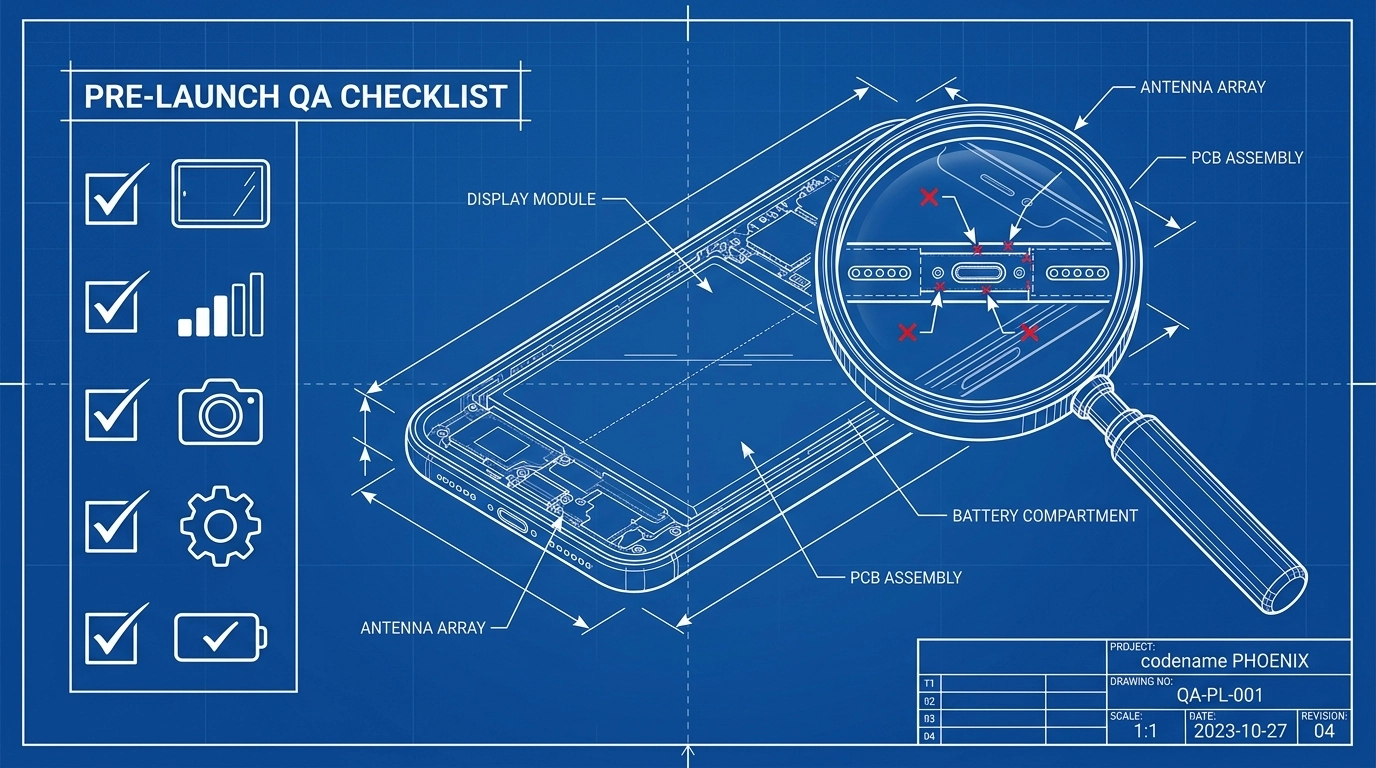
You’ve configured your app, picked an icon, and set your colors – but before you send anything to the app stores, you need to be sure it actually works the way your users expect. Knowing how to test a mobile app before launch is what separates a smooth first release from a wave of one-star reviews and rejected store submissions. Because AppLikeWeb wraps your existing responsive website into a native app, most of your testing focuses on how that website behaves inside the native shell across real devices and screen sizes.
This pre-launch QA checklist walks you through every stage – from validating in the live preview to installing the APK on a physical device – so you can catch bugs early and hand off a polished build to the closed-testing process with confidence.
Start in the Live Preview
The fastest feedback loop happens right inside AppLikeWeb. The live preview renders your wrapped website as it will appear inside the native app, so you can catch layout and behavior problems before you ever generate a build. Treat the preview as your first QA pass and click through the app the way a real user would.
- Confirm your app name, icon, and splash screen render correctly.
- Check that your brand colors and navigation behavior look the way you intended.
- Load your key pages – home, product or service pages, contact, and checkout – and make sure nothing is cut off or overlapping.
- Tap through your main menu and confirm every internal link opens the right page.
If something looks wrong in the preview, fix it in your website or your configuration now. It’s far cheaper to correct an issue here than after you’ve installed the build on a device.
Install the APK on a Real Device
Emulators and previews are useful, but nothing replaces holding the actual app in your hand. Generate an Android build, transfer the APK to a real phone, and install it. Real devices reveal touch responsiveness, scrolling smoothness, and performance quirks that a desktop preview simply can’t show you.
- Generate your APK (or AAB) from your AppLikeWeb project.
- Transfer it to a physical Android device and allow installation from unknown sources if prompted.
- Launch the app and confirm the splash screen and icon appear as configured.
- Use the app for a few minutes as a normal user – browse, tap, scroll, and submit a form.
- If you can, repeat this on a second device with a different Android version.
Pay attention to load times and whether the app feels native. Slow pages inside the wrapper usually point to something on your website that needs optimizing, since the app displays the same site your visitors already use.
Test Navigation and Back-Button Behavior
Navigation is where wrapped apps most often surprise first-time publishers. On Android especially, the hardware or gesture back button has to behave predictably, and your website’s internal links need to keep users inside the app rather than kicking them out to a mobile browser.
- Navigate several pages deep, then press back repeatedly – the app should step back through your history and eventually exit cleanly, not get stuck or close abruptly.
- Tap external links (social profiles, partner sites) and confirm they open the way you want.
- Check that your main menu, tabs, and any sticky navigation stay usable while scrolling.
- Verify that logging in, adding to a cart, or filling a multi-step form keeps its state as you move between pages.
Verify Push Notifications and Permissions
If you’ve enabled Firebase push notifications, send a test message and confirm it arrives on your device – both when the app is open and when it’s in the background. Tapping the notification should open the app to the correct place.
Permissions deserve the same attention. Your app should request only what it needs, and each permission should work when triggered:
- Trigger the camera or storage permission (for example, an upload field) and confirm the prompt appears and the feature works after you grant access.
- Download a file inside the app and check that it saves correctly and can be opened.
- Deny a permission on purpose and confirm the app fails gracefully instead of crashing.
- If you run ads or analytics, confirm they load without breaking your layout or slowing the app down.
Check the No-Connection State
Because your app loads a live website, connectivity matters. Turn on airplane mode or disable Wi-Fi and mobile data, then open the app and note exactly what happens. The goal is to know what your users will see when they lose signal, so there are no surprises after launch.
Then reconnect and confirm the app recovers – whether it reloads on its own or after a manual refresh. Understanding how your wrapped site handles a dropped connection is one of the small details that keeps a first impression from going sideways.
Test Multiple Screen Sizes and Orientations
Your responsive website already adapts to different viewports, but you still need to confirm it holds up inside the app across the range of devices your users own. Small differences in aspect ratio, notches, and system bars can push content out of place.
- Test on both a small phone and a larger one, and on a tablet if your audience uses them.
- Rotate the device to landscape and confirm nothing breaks or becomes unreadable.
- Check that buttons and tap targets stay large enough to press comfortably.
- If you’re also shipping desktop builds for Windows, macOS, or Linux, resize the window and confirm your layout adapts.
Bridge into Closed Testing and Launch
Once your build passes this checklist on your own devices, you’re ready to widen the circle. Move into a closed testing round – a small group of real testers using the app on their own phones – which is also a requirement for publishing on Google Play. Fresh testers catch issues you’ve stopped noticing and confirm that push, permissions, and navigation behave the same on hardware you don’t own. On premium plans, AppLikeWeb can help you set up Google Play Console and the closed testing workflow so this step goes smoothly.
How to Test a Mobile App Before Launch Without the Guesswork
Learning how to test a mobile app before launch isn’t about chasing perfection – it’s about catching the obvious, avoidable problems that damage first impressions. Work through the preview, the real-device install, navigation, push and permissions, the offline state, and multiple screen sizes, and you’ll submit a build you can be proud of.
Ready to build and ship your app? Start converting your website with AppLikeWeb and turn your responsive site into native apps you can test today.